Version: v1.0
Tools
What is the main Purpose of this Page
In this page will will find all the additional pages that our system offers. All of these tools have been developed to help companies improve their workflow.
The additional tools that you can find in our system are the following:
-
Document comparison tool
-
SEPA XML transactions generation
-
Merging pdf's tool
-
Splitting pdf's tool
-
Removing pdf's password tool
-
Repairing pdf's tool
We will explain, in the following pages, what each toll does and how to use it. Please take in consideration that some tools work completely in parallel to the rest of the system.
Video tutorials
The following video gives a thorough explanation on how all the pdf related tools work.
The following video gives a thorough explanation on how all the Peppol related tools work.
Document comparison Tool
This tool, as the name suggests, allows one to compare current documents that are currently in the system. It will verify what are the difference between both documents depending on the criteria(s) that you shall insert in the system.
How to use it
First of all, you will to trigger the system that you want to use that
specific tool. To do so, you will need to click on the Compare
Documents that can be found on the left side of the screen. Once you
have triggered the system, your system should look like this:
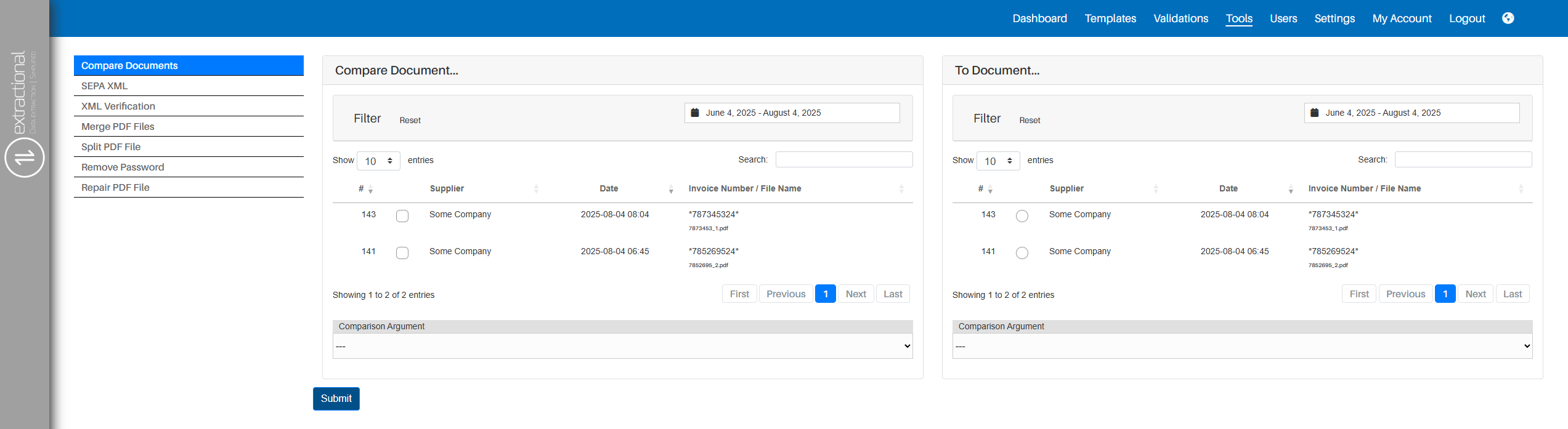
Executing a simple comparison
What is a simple comparison
A simple comparison in our system is when you simply choose one Argument for each document for comparison. The system, in this case, will simply look for all the chosen argument in each document in the left and try to find the same value in one of the items of the selected at the right side.
How to do it
To do a simple comparison between two or more documents,you will only need to
click choose on file at each side window, choose the comparison
criterion, and click on the Submit button to let the system
visualize the differences between both documents.
Note
Please note that you have the possibility to choose several documents at the left side of tool, allowing to compare several documents into a single one.
Executing a multi-conditional comparison
What is a multi-conditional comparison in our system
A multi-conditional comparison in our system allows you to define a identifier argument to a comparison and one or several arguments as comparative ones.
In this case, the system will try to find an item within each document with the same identifier argument and compare the other arguments defined. If the system fails to do to find two items with the same identity argument,, it will not execute any comparison.
How to execute this type of comparison
In order to trigger the system to create such a comparison, you will firstly need to define the identity argument for each one of the sides as if you where to do a simple comparison.
You will then add all of your comparison arguments by clicking on the small green plus icon that can be found at the top right corner of the left argument case.
Once done, you will need to define the argument that you want to compare in both sides. You can add as many comparative arguments as you would like.
Once you have made your choice, you will simply need to click on the Submit button at the system will execute the comparison.
Note
All items that do not have a respective item to compare will appear in red while all the other will appear in green. In addition, all comparative elements that will not be equal within the same identity elements will not appear in red.
Here you may also find a screenshot of how the system will look like when comparing elements from two documents:

Additional buttons
Additionally, you also have the possibility to directly change the state o of teh document that is being compared. This can be done by clicking on the Release button on the bottom left corner of the respective table.
SEPA XML
This tool will automatically generate all xml files containing all SEPA transactions needed to liquidate all selected validations.
Prerequisites
In order to use this tool, you account(s) will needs to already be configured in the system. This can be done in the settings page. For more information, please follow the following link
In addition, you will only be able to generate XML files for validations that have been released, this ensuring that you do not pay any documents that have not been verified be someone.
How it works
Initially, you will need to click on the SEPA XML text field at the
left side of the screen. Once you have selected the correct tool, your
system shall look like this:
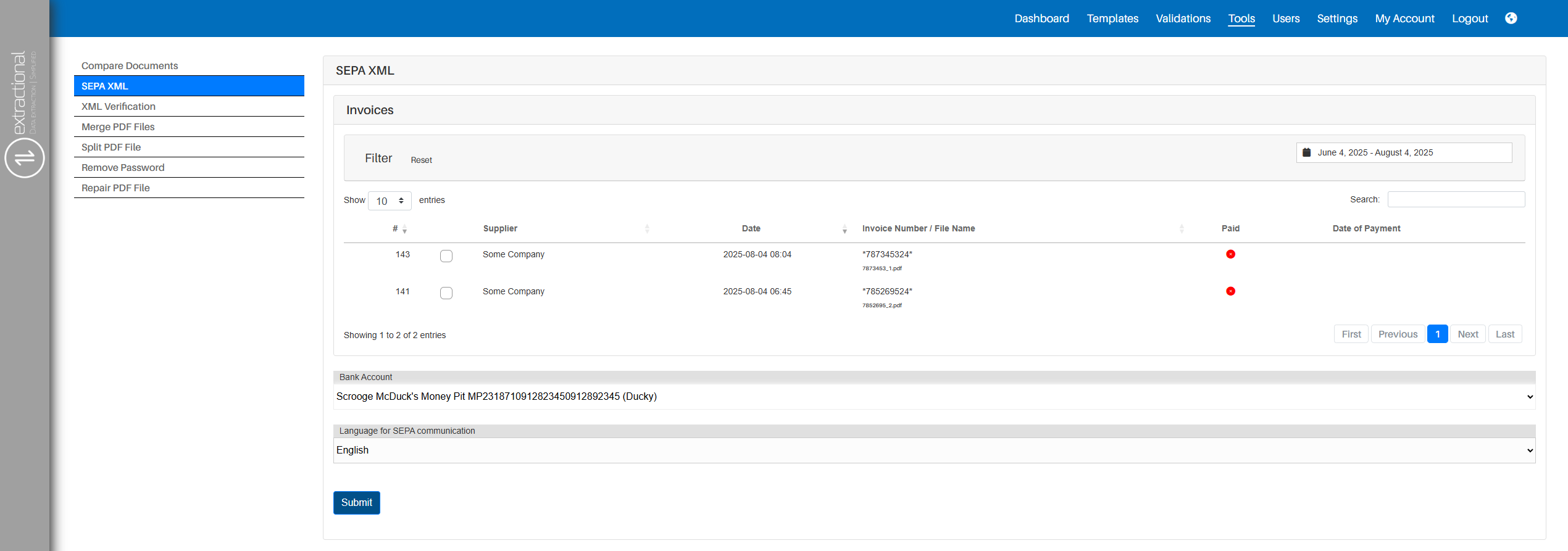
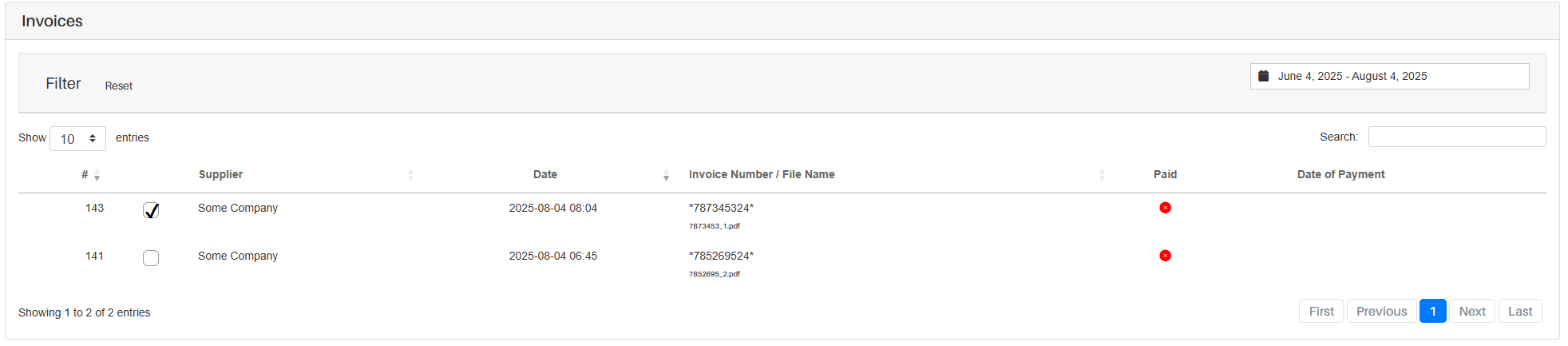
Now that you are on the correct tool, you will need to choose all the validations that you would like to create their respective XML files. To do so, you will need to select them by clicking on the square box situated at the left of each validation. To help you visualize where you shall select the different files, here is an example in which only the first file is selected:
Once you have selected all the desired files, you will need to choose the desired bank account where you would like to execute the several payments, as well as choosing the respective language that you would like to be present on the respective XML files.
To choose all of these parameters, you can click on each selection at the bottom of the page and select your preference.
Lastly, once all of the preferences have been chosen, you shall now
click on the Submit button, and the corresponding XML file(s) will
be downloaded.
XML Verification
In this tool you will be able to verify if any XML files (SEPA or PEPPOL) are syntactically correct.
How to use this tool
To use this tool, you will to need to start by clicking on the \"XML Verification\" text field on the left side of the screen. Once you have clicked on the respective button, you shall be presented with the following page:
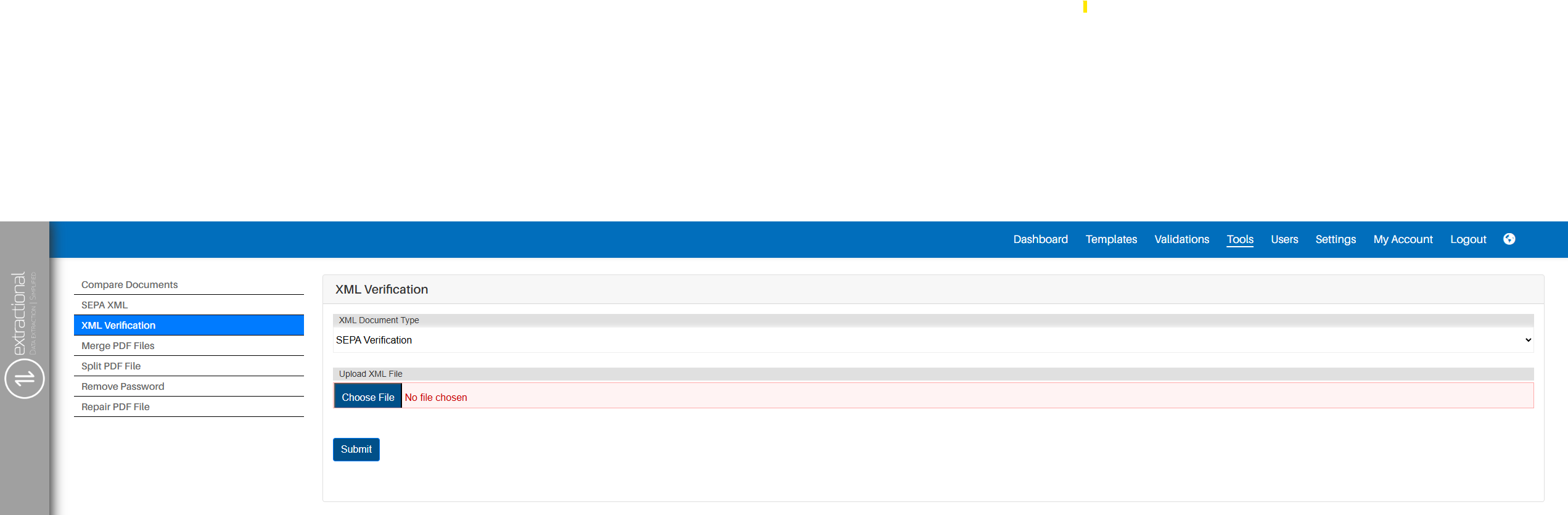
You will then choose the type of verification that you would like to perform (typically SEPA or PEPPOL) and, if needed, choose all the respective additional parameters.
Once you have defined all the different parameters, you shall now choose
the file that you would like to verify, this can be done by clicking on
the Choose file button. You will be redirected to your operating
system's file-selection dialog to then select the corresponding file.
After making your choice, you can now verify your XML file by simply
clicking on the Submit button. The system will then verify the
chosen file and will now directly tell you if there are any errors in
the file.
PDF Manipulation
Our system also provides different pdf manipulation tools. All of these tool will allow you to help you manage all pdf files easily.
Merging pdf files
This tool allows you to merge several pdf file into one file.
How to use this tool
To use this tool, you will need to firstly click on the Merge PDF
Files text field on the left side of the screen. You will then be
presented with the following screen:

Now that you are in this menu, you will then need to choose all the
files that you would like to merge. This will be done by clicking on the
Choose files button followed by using your operating system's
file-selection dialogue to select all the files.
Important
We recommend having all files that you would like to merge in the same directory (folder) to facilitate the selection of the files in the operating system's file-selection dialogue.
After having done the file section, you will then need to upload all the
files into the system; this can be done by clicking on the Upload
button on the right side of the screen.
The system will then redirect you a new page where you will have the possibility to reorder all the files that you are going to merge. In order to reorder them you will need to drag them around. This reordering page shall look like this:
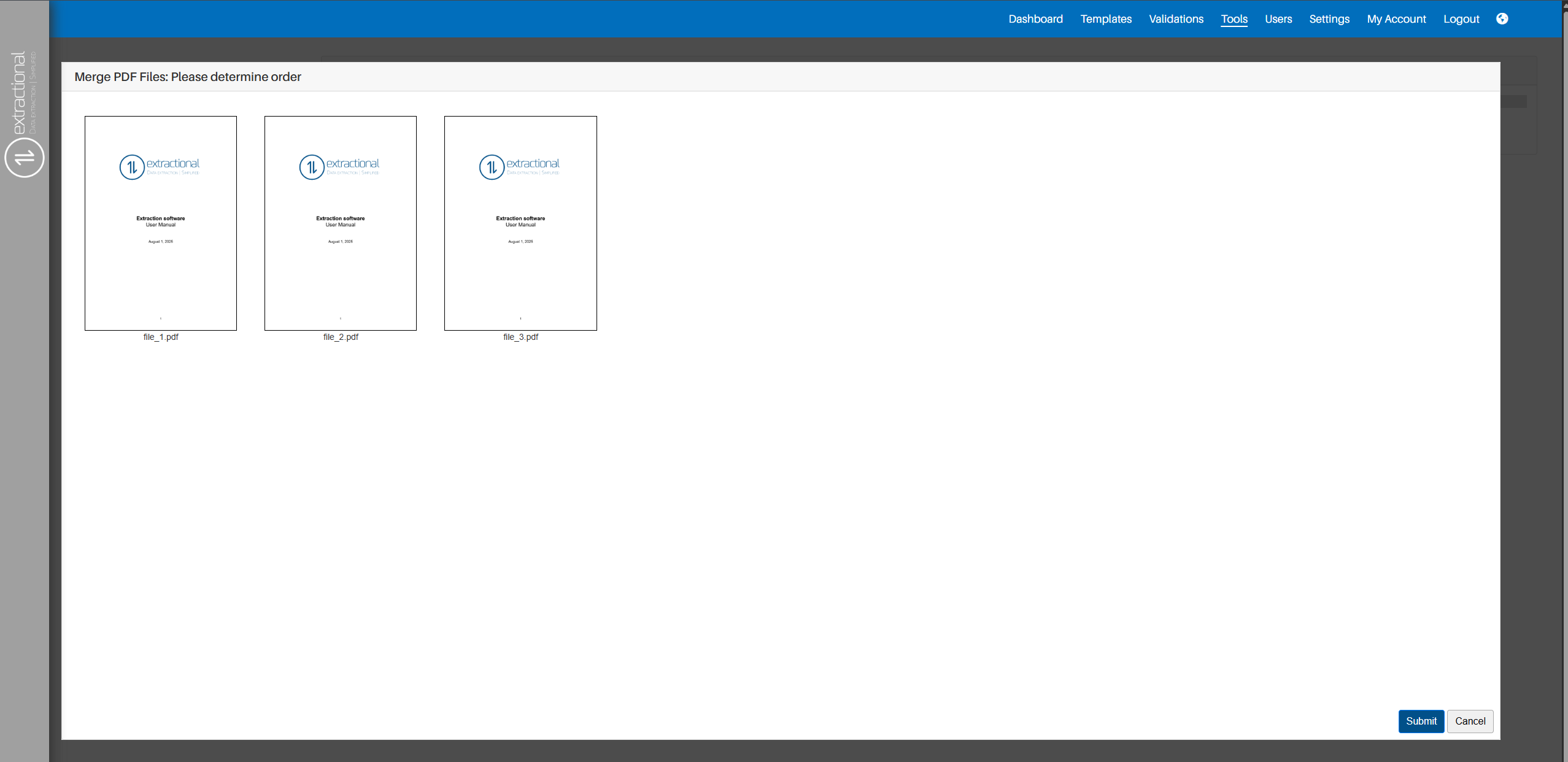
As soon as you are happy with the order, you can now chose to either download the resulting file or to directly add it as a new validation in the system.
Splitting PDF's
This tool will allow you to do the vice-versa of the previous one, meaning that it will split a pdf file into several pdf files. More specifically, this system will separate a X-paged pdf file into x files, each one containing of the pages of the file.
Important
You can always use this tool together with the Merge PDF Files toll
to execute a more sophisticated operation.
How to use this tool
To use this tool, you will need to first click on the Split PDF File
text field on the left side of the screen. You will then be presented
with the following screen:

Afterward, choose the file that you would like to split by clicking on
the Choose files button followed by using your operating system's
file-selection dialog to select the file.
After having done the file section, you will then need to upload all the
files to the system; this can be done by clicking on the Upload
button on the right side of the screen. The system will then
automatically download all the different files in your machine. Please
be aware that all files will be downloaded in a compressed format zip
file.
Removing Password
This tool will allow one to remove a password of a certain PDF permanently; this, however, can only be done if you have the current password at your disposal.
How to use this tool
To use this tool, you will need to first click on the Remove Password text field on the left side of the screen. You will then be
presented with the following screen:

Afterward, choose the file that you would like to split by clicking on
the Choose files button followed by using your operating system's
file-selection dialog to select the file.
Once you have chosen the file that you would like to remove it's
password, you will need to insert the current PDF's password by
inserting it in the text field under Current Password and click the
Upload button on the right side of the screen.
The system will then try to remove the pdf's password and if it succeeds, it will directly download the pdf without any password; if not a pop-up message will be shown telling you what went wrong.
Repair file
This tool will help you recover any corrupted pdf file that might have suffered any lightly damages.
Important
Please note that this tool will only recover files that have suffered slight damages; it will not be able to recover from more severe damages.
How to use this tool
To use this tool, you will need to first click on the Repair PDF
File text field on the left side of the screen. You will then be
presented with the following screen:
Afterward, choose the file that you would like to repair by clicking on
the Choose file button followed by using your operating system's
file-selection dialog to select the file.
After having done the file section, you will then need to upload the file to the system; this can be done by clicking on the \"Upload\" button on the right side of the screen. The system will then automatically try to repair the uploaded pdf, and, if it succeeds, it will directly download the recovered file; if it does not succeed, a pop-up message will be shown telling you what went wrong.